

Sneller verzenden met Zineps: 4 functies die je tijd besparen
Sneller verzenden met Zineps: 4 functies die je tijd besparen
Verzendlabels aanmaken hoort niet het tijdrovendste onderdeel van je werkdag te zijn. Toch herken je het vast: voor elke zending opnieuw het gewicht intypen, de afmetingen van je standaarddoos invoeren en bij internationale pakketten weer op zoek naar die ene HS-code. Allemaal kleine handelingen die samen flink wat tijd kosten.
Daarom hebben we Zineps op vier punten slimmer gemaakt. Je stelt je vaste voorkeuren één keer in, en daarna doet Zineps het werk voor je. In dit artikel lopen we de functies stap voor stap met je door.
1. Stel je vaste doosformaten in
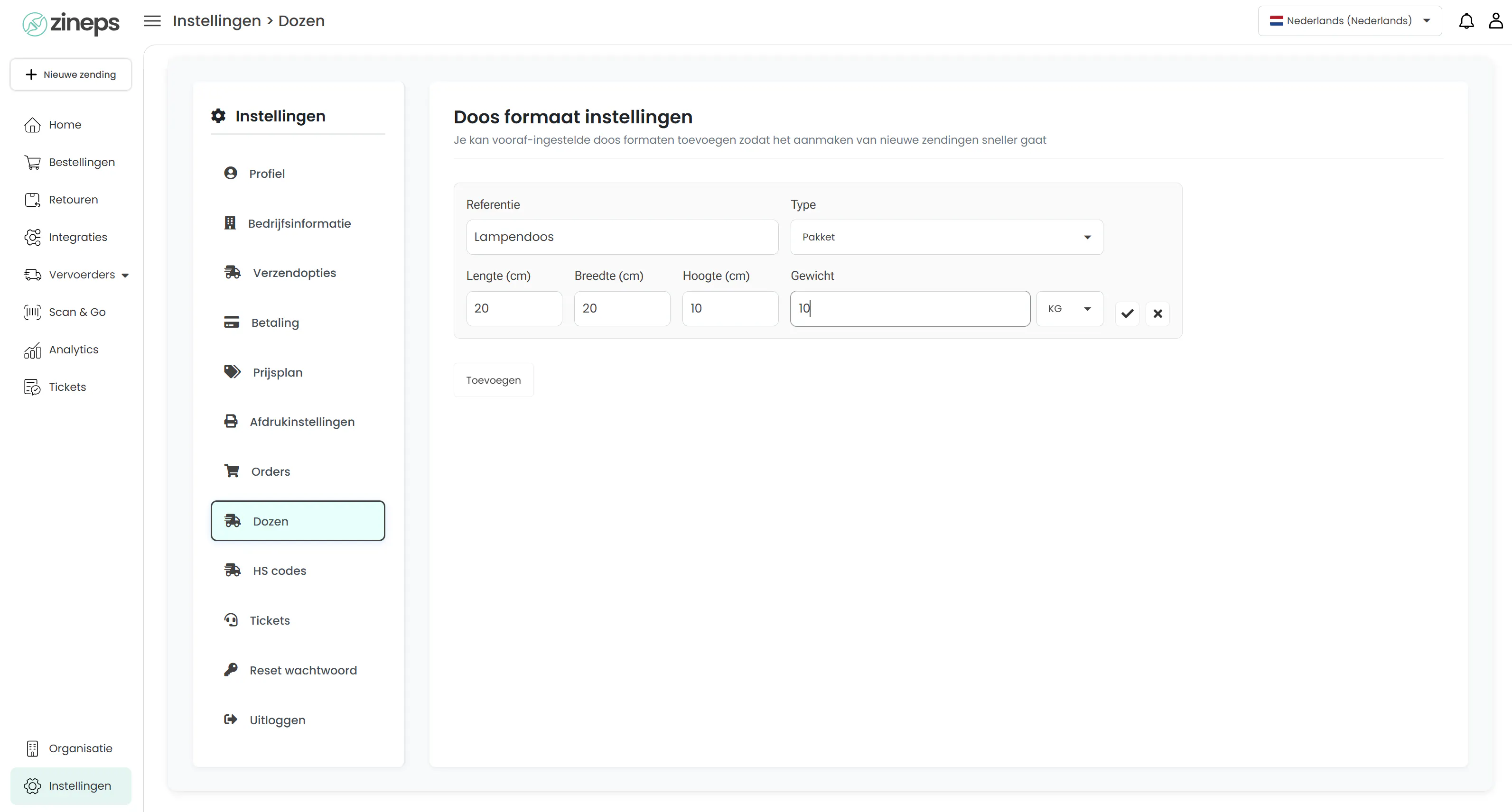
Verstuur je vaak dezelfde soort pakketten? Dan hoef je de afmetingen niet meer telkens opnieuw in te typen. Bij Zineps kun je nu je eigen doosformaten opslaan onder een herkenbare naam.
Ga naar Instellingen → Dozen en klik op Toevoegen. Je geeft je doos een duidelijke referentie, bijvoorbeeld "Lampendoos", kiest het type (zoals Pakket) en vult de lengte, breedte, hoogte en het gewicht in. Klik op het vinkje om op te slaan en je formaat staat klaar voor gebruik.
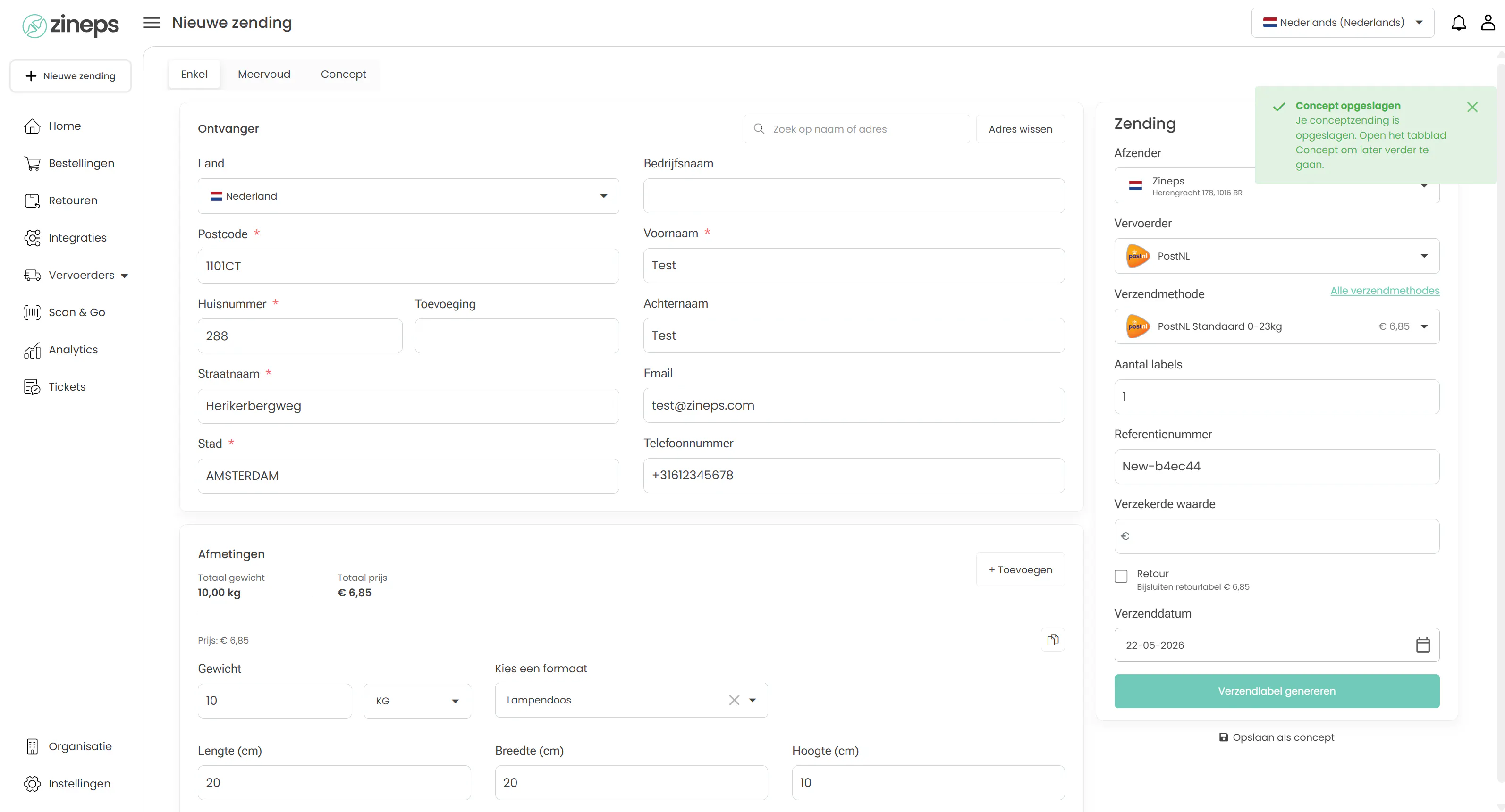
Vanaf dat moment kies je bij het aanmaken van een nieuwe zending simpelweg je opgeslagen doos uit de lijst onder "Kies een formaat". De afmetingen worden automatisch ingevuld. Scheelt je elke keer weer een aantal velden invullen.
2. Stel je standaard verzendmethode én standaard gewicht in
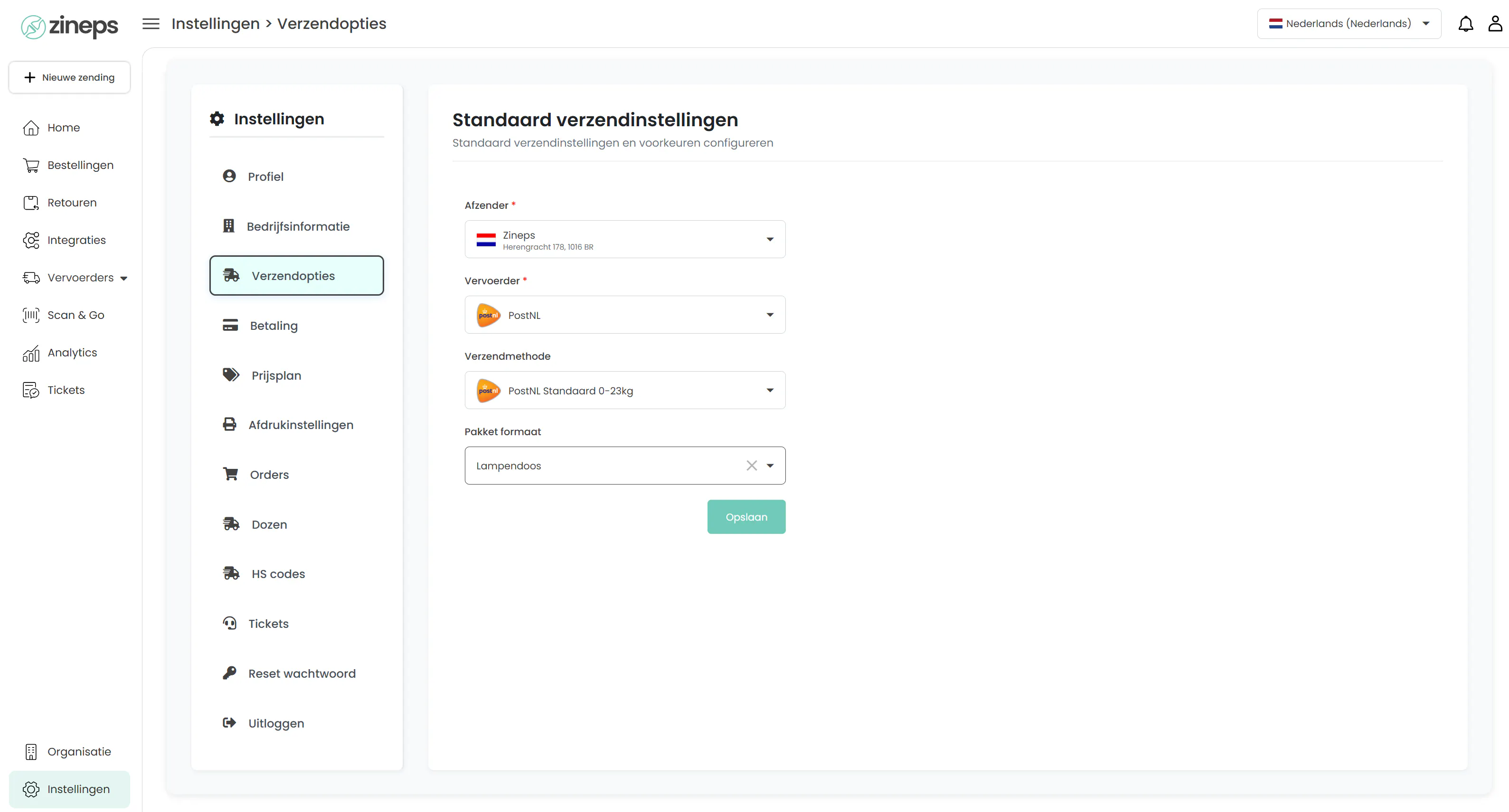
Verstuur je het grootste deel van je pakketten met dezelfde vervoerder en verzendmethode? Dan kun je die nu als standaard instellen, zodat ze automatisch klaarstaan bij elke nieuwe zending.
Ga naar Instellingen → Verzendopties. Hier configureer je je standaard verzendvoorkeuren: de afzender, de vervoerder (bijvoorbeeld PostNL), de verzendmethode (bijvoorbeeld PostNL Standaard 0-23kg) en het pakketformaat. Door hier een van je opgeslagen doosformaten te koppelen, geef je in feite ook een standaard gewicht en standaard afmetingen mee.
Klik op Opslaan en je bent klaar. Het resultaat: open je een nieuwe zending, dan staan je vervoerder, verzendmethode, afmetingen én gewicht al voor je ingevuld. Je hoeft alleen nog de gegevens van de ontvanger toe te voegen.
3. Beheer je vaste HS-codes voor internationale zendingen
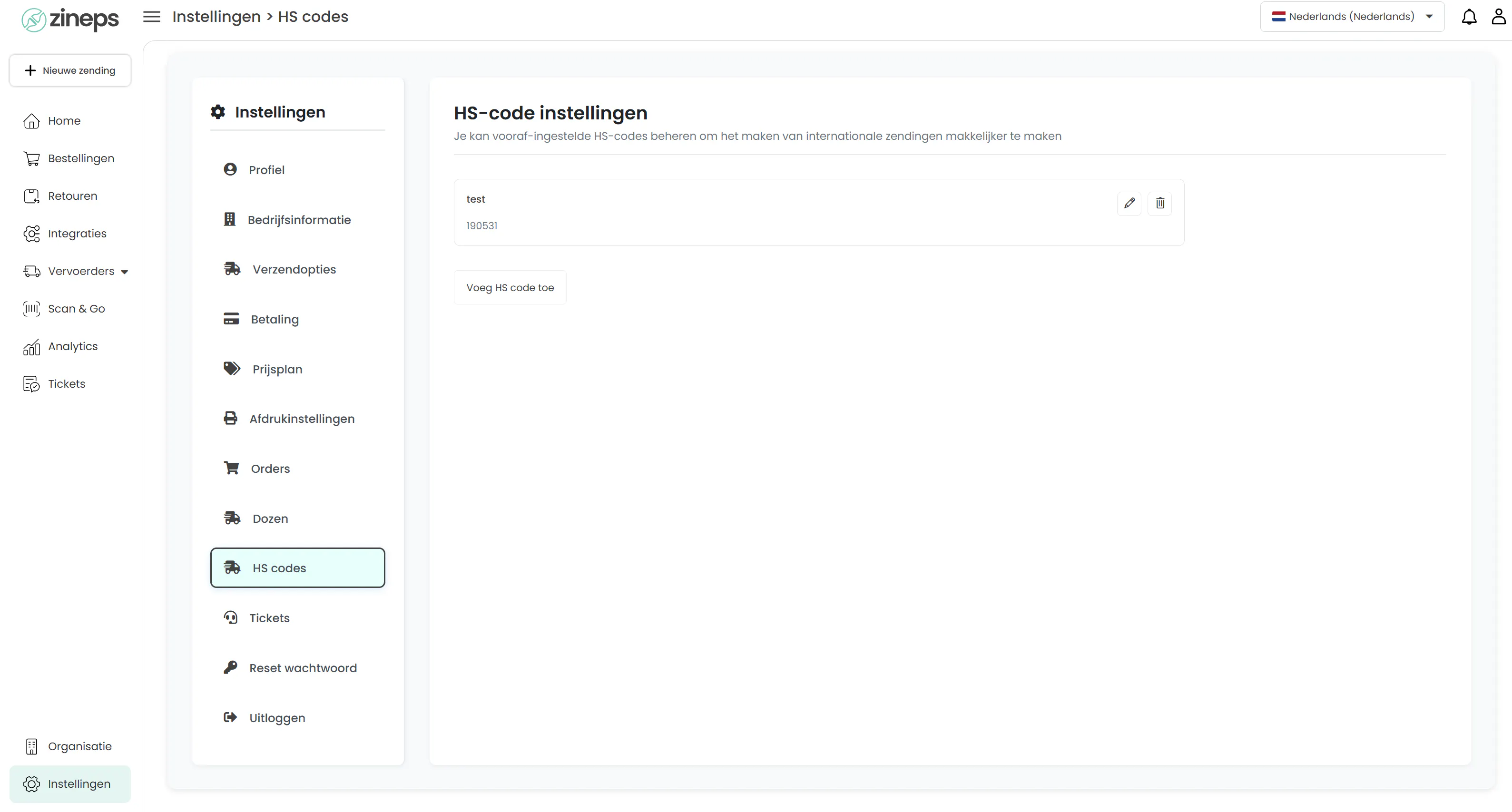
Verstuur je pakketten naar het buitenland? Dan ken je het belang van HS-codes: deze internationale productcodes zijn nodig om je zending soepel door de douane te krijgen. Steeds de juiste code opzoeken is omslachtig, dus die handeling nemen we je nu uit handen.
Ga naar Instellingen → HS codes en klik op Voeg HS code toe. Je geeft je product een herkenbare naam en koppelt daar de bijbehorende HS-code aan. Je kunt zoveel codes opslaan als je nodig hebt, en ze later altijd aanpassen of verwijderen.
Met je vaste HS-codes paraat maak je internationale verzendlabels voortaan een stuk sneller, zonder telkens te hoeven opzoeken welke code bij welk product hoort.
4. Sla een zending op als concept en maak hem later af
Niet elke zending kun je in één keer afronden. Misschien wacht je nog op het adres van een klant, of word je halverwege gestoord. Met de conceptfunctie hoef je je werk niet meer te verliezen.
Vul bij een nieuwe zending in wat je al weet en klik onderaan op Opslaan als concept. Je krijgt een bevestiging in beeld dat je conceptzending is opgeslagen.
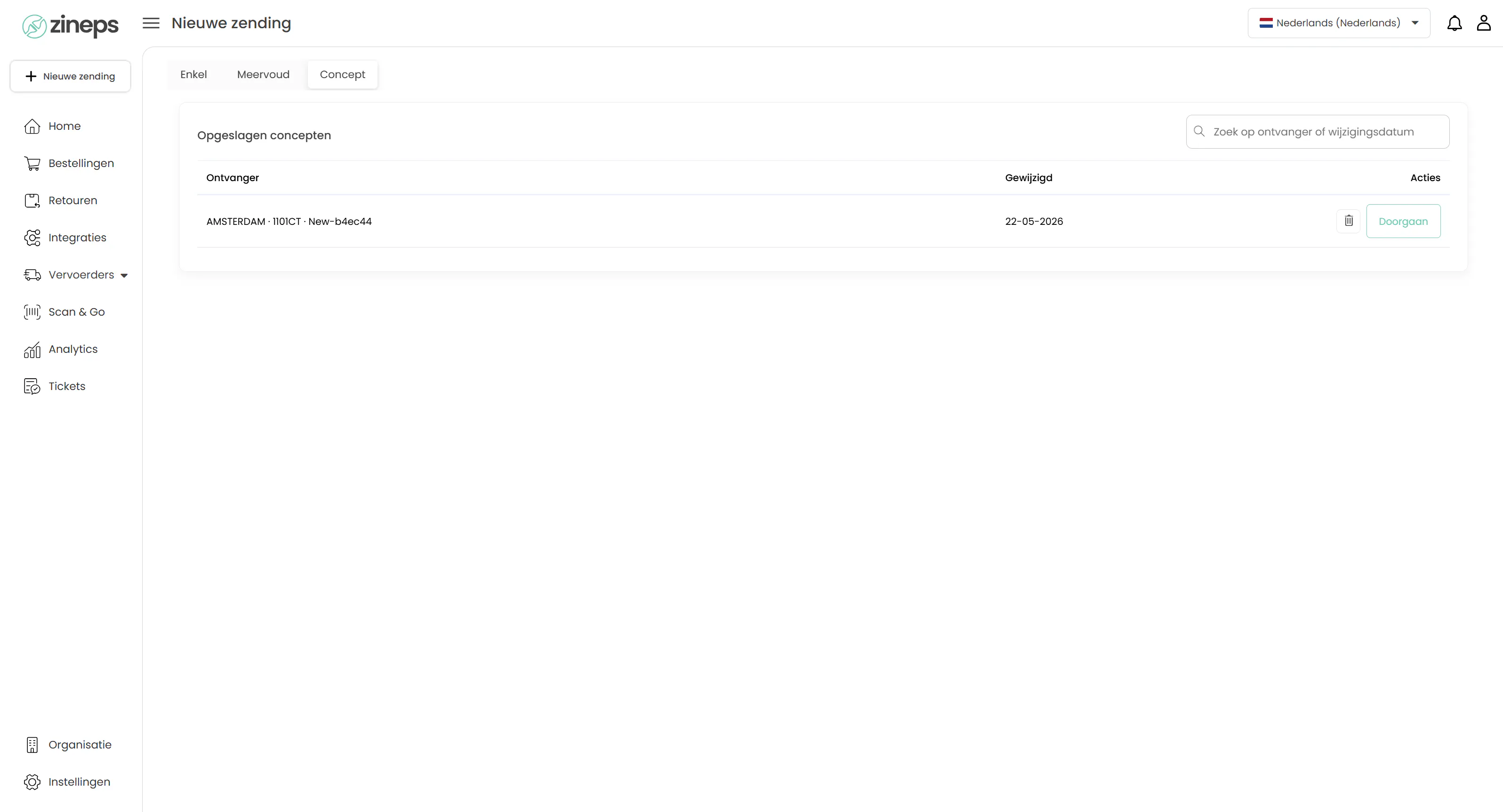
Wil je later verder? Ga naar Nieuwe zending en open het tabblad Concept. Daar vind je al je opgeslagen concepten terug, overzichtelijk met de ontvanger en de datum waarop je ze het laatst hebt gewijzigd. Klik op Doorgaan om een concept weer te openen en af te maken, of gebruik de prullenbak om een concept te verwijderen.
Zo pak je je werk op precies waar je gebleven was, zonder ook maar één gegeven opnieuw in te hoeven voeren.
Klaar om tijd te besparen?
Deze vier functies hebben één ding gemeen: je legt je voorkeuren één keer vast en profiteert daar bij elke volgende zending van. Minder handmatig werk, minder kans op fouten en meer tijd voor de dingen die er echt toe doen in je webshop.
Log in op Zineps, neem even de tijd om je standaardinstellingen goed te zetten, en ervaar zelf hoe veel sneller het verzenden daarna gaat. Veel verzendplezier!